¶ Introduction
The following guide covers the basics of Melco OS. This software controls the machines before and during the sewing. It is only available on the left computer in Digital Textiles Lab but it can control multiple machines at the same time.
¶ Time to complete
- as much as your design needs
¶ Materials Required
- .ofm file from Design Shop
¶ Personal Protective Equipment (PPE):
• Sturdy, close-toed shoes must be worn at all times.
• Long hair, jewelry, and loose clothing must be tied back.
• Ear protection is recommended when two or more machines in the lab are running at once.
For more information on shop safety visit Digital Textiles under "Safety."
¶ Importing into Melco OS
Open your saved .ofm file in MelcoOS.
¶ Setting Thread Colors
Both Design Shop and Melco OS will try to set the thread colors based on the colors in your design and the existing layout of colors on the machine as set in the software. Consequently there are several places that the colors can be set but only one that determines the colors on the final product.
- Set colors in your vector file. This is good for visualizing how you want it to look.
- Design Shop will try to match the colors in your design. You can set different colors here.
- Melco OS will try to match the colors as given by Design Shop. You can assign different thread colors here and it will update the preview.
THEN
In Melco OS, you also have to tell the software where each color is on the machine so that it knows which thread to use for each part of the design.
- Locate the Color Sequence button in the pane on the right side of Melco OS, and click it to open the Settings window.
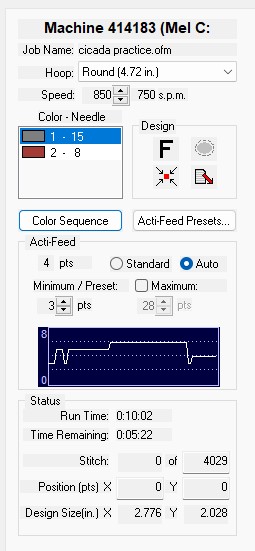
- The Settings window lets you fine tune many thread related parameters. The one most people change is Color.
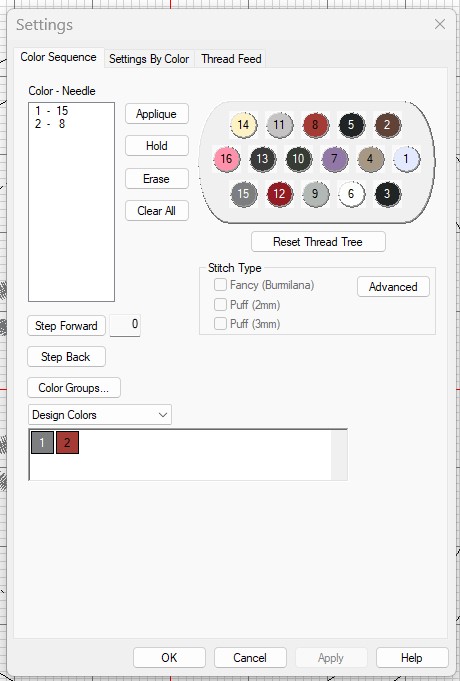
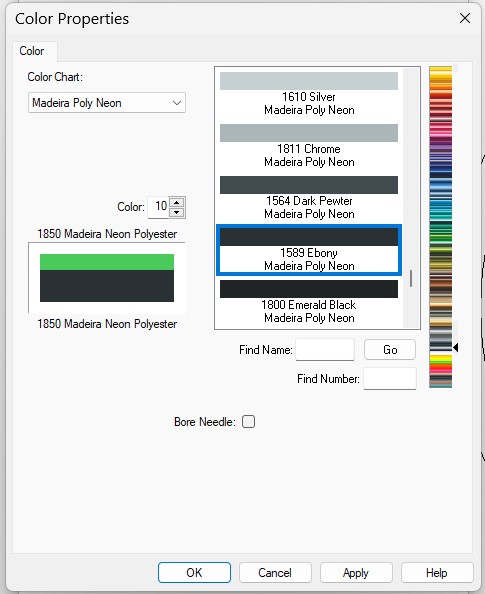
- The Thread Tree in the upper right represents the colors that the machine thinks are loaded (but it may not be accurate and often isn't). The numbers correspond to the numbers printed on the thread tree on the machine and the needle numbers printed on the front of the machine. Clicking on one of the little circles will bring you to the Color Properties window, which lets you update the colors on the thread tree.
THEN, assign the actual threads to the parts of the design.
-
Refer to the Design Colors area at the bottom of the Settings window. Each box has a color and a number. The number refers to the order the colors will be stitched in.
-
Refer to the Color-Needle box in the upper left of the Settings window. The first number is the number from the Design Colors box and the second number refers to the position of the thread on the thread tree/needle number.
-
Click Clear All to remove all of the current assignments.
-
Click on a box in the Design Colors area. Then click on the number on the Thread Tree that has the color you want. This will populate the Color-Needle box with the list of assignments.
-
Repeat this for all boxes in the Design Colors area.
Note: you can just lie to the machine. The colors defined in software may not match the threads as placed on the machine. CHECK that the colors are where and what you want them to be BEFORE starting the sew-out.
¶ Starting the sew out
Send to Machine
Set origin/zero/center of hoop
¶ Monitoring the machine
¶ Snapped thread
These machines love to snap threads. Monitor the machine and the notifications from Melco OS for thread breaks. There are many factors that can contribute to the thread breaking. Check:
- Is the needle sharp? Needles should be replaced every 5-10 hours of sewing.
- Is the needle the right type for the fabric? For example, sharps should be used on woven materials while ball point needles should be used on knit materials.
- Is the needle angled correctly? The scarf of the needle should be pointing towards the machine and angled about 5 degrees to the left.
- Is the material supported in the hoop? Your fabric, stabilizer, etc should be fully captured on all edges by the hoop and your fabric should not be moving around or bubbling up at all.
- Is your stabilizer appropriate for the fabric and amount of stitching to be done?
- Is the bobbin thread tension correct? Check it with the bobbin tension gauge.
- Is the Acti-feed set to the appropriate rate? Stitching slower is easier and more reliable than stitching faster.
¶ Acti-feed
The Acti-feed feature provides control over the rate at which the machine sews while it is sewing. Ideally you want to see an even thread feed rate and the stitch rate should be adjusted to maintain an even thread feed rate. (verify)
The native unit is points, like a font.
Give a minimum/preset.
Not enough thread means that the stitches won't have enough depth or bounce in them to make the product look good.