%%%INSERT IMAGE HERE%%
¶ Introduction
The Glowforge is a tabletop laser cutter with a streamlined user interface that operates in a web browser.
Maximum material size:
- 20.5" wide (snug)
- 13" deep (snug)
- If using the pass through slot, dimensions can be 20.5" by whatever depth/length
Maximum cutting area:
- 19.5" wide
- 11" deep
- If using the pass through slot, dimensions can be 19.5" by whatever depth/length
Maximum material height:
- with tray: 0.5"
- without tray: 2"
¶ Shop Access
A membership or day pass is required before using the 3D Printing lab. There is no safety class required, however we do strongly recommend checking out our free online project guides and quick start guide.
¶ Machine Reservations
The Glowforge needs to be reserved before you use it. You can make machine reservations in the following ways:
Click to expand
- In person at the front desk.
- Reserve a machine any time through our Mind Body Portal.
- Call the front desk during business hours at (410) 862-0424.
- Email us at frontdesk@openworksbmore.com. Please include your name, the machine you'd like to reserve, and the date(s) and times of the reservation(s).
¶ Parts of the Machine
Click to expand
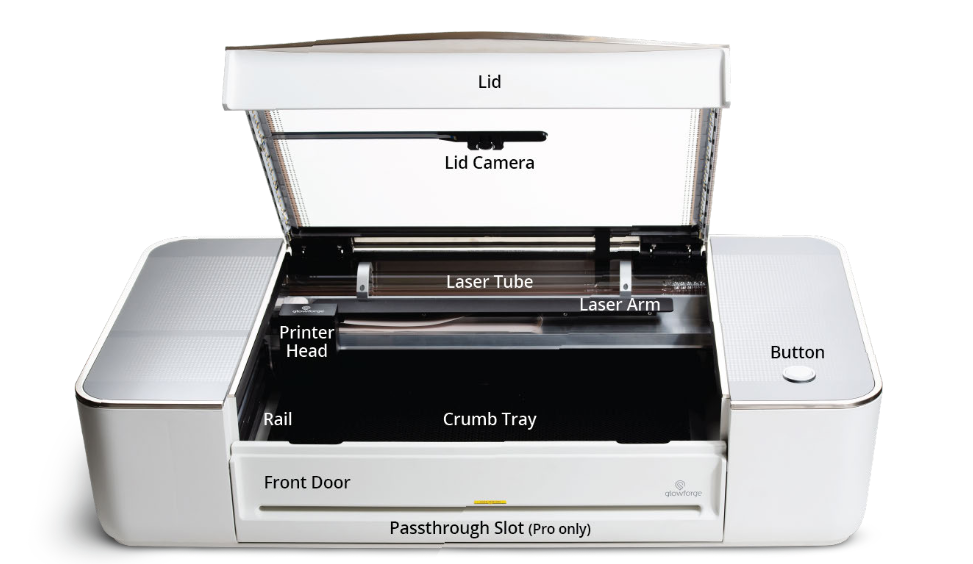
¶ Material Considerations
¶ Engrave and Cut:
🪚 Wood
🪚 Leather
🪚 Draftboard
🪚 Veneer
🪚 Paper
🪚 Cardboard
🪚 Cork
🪚 Sandpaper
¶ Use with Caution and Proper Technique:
Mirror
¶ Forbidden Materials:
Acrylic (insufficient ventilation in room for the fumes)
¶ Safety
Personal Protective Equipment (PPE):
• Sturdy, close-toed shoes must be worn at all times.
• Long hair, jewelry, and loose clothing must be tied back.
If you need to step away, you can pause cutting any time by pressing the white button. To resume, just press the button again and the cut will continue.
Note: If you open the lid or click Cancel it will cancel the print.
¶ Before You Begin
Check out a series of projects designed to familiarize you with the Glowforge!
¶ Using the Machine
Quick guides! Almost everything you could want to know! Get it HERE
● Cut: The laser moves slowly along a path, at full power, to cut all the way through the material.
● Score: The laser moves quickly along a path, at lower power, to draw a line that does not go all
the way through the material.
● Engrave: The laser moves quickly back and forth, turning on and off thousands of times per second, to create an image on the surface.
¶ Setting up a design for cutting
| Change | Windows | Mac |
|---|---|---|
| To darken a line | Control + Up Arrow | Command + Up Arrow |
| To lighten a line | Control + Down Arrow | Command + Down Arrow |
| To remove small details like dirt and noise | Control + Shift + Up Arrow | Command + Shift + Up Arrow |
| To restore small details | Control + Shift + Down Arrow | Command + Shift + Down Arrow |
| To delete a design item | Delete key | Delete key |
Select the entire design by clicking and holding on a spot well outside of the design, and then drag diagonally to select the entire design.
With the whole design selected, you can resize, and then drag to place the design where you want it to be on the material.
¶ Cutting
- Go to app.glowforge.com and sign in.
- Place the material you want to use on the printer bed of your Glowforge.
If using Proofgrade material, make sure the QR code is whole and visible. Otherwise, select the material manually after the design is uploaded.
- Upload the design. On the Dashboard, click Create, then Upload from file. Your design will open in the workspace. The design will appear as separate print steps on the left of the workspace.
Select the material now if you are manually setting it. Click Unknown at the top left of the screen, and then select your material from the list.
- Place your design. Drag your whole design to place it where you want it on your material.
- When you are satisfied with the placement of your design, click PRINT in the app, and then when the button on your Glowforge printer starts glowing, press it and watch it go.
- To print your design, click PRINT in the top right of the workspace. Then, when the button on the Glowforge starts blinking, press it and watch the laser go.
It’s important that you stay by the Glowforge while it is working.
¶ Machine Maintenance
- Lower the Front Door and Remove the Crumb Tray. Lift the lid, then lower the front door. Lift the crumb tray slightly and slide it towards you. Be careful not to tilt the crumb tray up, or it will knock into the laser arm and rails.
- Empty Your Crumb Tray. Lower the front lip of the crumb tray and dump the contents of the crumb tray catch area. Afterwards, you may invert the crumb tray to remove anything that may be left.
- Wipe the Floor of Your Glowforge. Wipe the metal floor of the Glowforge printer with a soft cloth to sweep away any bits.
The Glowforge printer may not be serviced or repaired by the user. Should service or repair be required, it must be returned to the factory; contact glowforge.com/help for instructions
¶ Troubleshooting
¶ Moving to a new Wi-Fi network
- Using a device that connects to the internet via Wi-Fi, go to setup.glowforge.com and sign in.
- Turn on your Glowforge and wait until all motion has stopped for 30 seconds.
- Hold down the button on your Glowforge for ten seconds, until it glows with a teal color.
- Follow the instructions on screen to connect your Glowforge to Wi-FI.
¶ References
Instructions adapted from the manufacturer's manual.
Glowforge support page.
Glowforge product Page.
¶ Video Walkthroughs
Embed videos directly into the Wiki, do not link.
¶ Resupply Form
Click here to report any consumables that need to be replenished.